Thursday, 28 February 2019

How to Sync iPhone Contacts to Gmail?

Building a network of connections can be hugely beneficial, especially in the business world. But, nowadays, it's only phone numbers that seem to get traded, which then limits you to text messages and phone calls. What about if you want to send out a lengthy email to your contacts?
Of course, you can transfer contacts across platforms, but you'll often encounter problems. So, we're going to teach you some ways to sync your iPhone contacts to Gmail.
  • Specific Steps to Sync iPhone Contacts to Gmail
  • How to Import Contacts from iPhone to Gmail
  • How to Save Contacts to Google Drive from iPhone
  • How to Save Contacts from iPhone to Computer

1. Specific Steps to Sync iPhone Contacts to Gmail

If you merely want to have all of your iPhone contacts show up in your Gmail account, then here's exactly how to do it:
  • Hop into the Settings app on your iPhone, scroll down slightly and select 'Account & Passwords' if you use iOS 10.3 and later versions. For iOS 10.2 and earlier users, choose 'Mail, Contacts, Calendars'. Once you're in there, you want to hit 'Add Account'.
  • A new slide will pop up with a bunch of different platforms. As you're syncing to Gmail, you'll want to select 'Google'. It will then ask you to log into your Gmail.

    Also Read:5 Best Funny Face Swap Apps For iPhone in 2019

    Also Read:How to Share Private Home Videos with Family and Friends?
  • You'll then be given a little toggle button asking whether you want to sync with 'Contacts', make sure that's on. Next, hit 'Keep on My iPhone', and that will prepare to sync all of your contacts and place them in the 'All Contacts' group of your Gmail.
sync iPhone contacts to Gmail
  • To actually commence the sync, go back to your iPhone Settings, find 'Fetch New Data' and make sure the toggle button is set to on.

2. How to Import Contacts from iPhone to Gmail

For those that want to import all of your contacts to your Gmail account, rather than syncing them, adopt this strategy:
Export contacts as vCard
  • Go into your Gmail account and select 'Import Contacts' from the side menu. Hit 'Choose File', then find the file that you just downloaded from iCloud. All you need to do to finish is click 'Import', and you'll have all of your contacts on your Gmail profile.

3. How to Save Contacts to Google Drive from iPhone

There is an alternative way to move your iPhone contacts onto the Google platform, and that's to save them all into your Google Drive.
  • First, you'll want to enter the app store and download the Google Drive app onto your iPhone.
  • Once you've done that, open up the app, select 'Menu' and hit the 'Settings' icon.
  • When you're in settings, hit 'Backup' and then begin the process by tapping 'START BACKUP'.
save contacts to google drive from iPhone
Above are three solid techniques to transfer your iPhone contacts to Gmail. But, a much easier and more secure approach is to backup your iPhone on a computer. In this situation, we recommend utilizing the iMyFone D-Port software, which offers much more than just syncing contacts.Sponsor ads:
Gihosoft iPhone Data Recovery Free
Free iPhone Data Recovery Software for Windows/Mac
Recover up to 12+ types of files, including contacts, SMS, photos, WhatsApp, Viber, notes, etc.
Restore lost data from iOS devices directly or from iTunes and iCloud backup
Recover iPhone data lost due to iOS upgrade/jailbreak, accidental deletion, device lost or broken
Support all the latest iPhone, iPad and iPod Touch
Both Free and Pro version.
If you lost data after you updated to a new iPhone, you can always use Gihosoft iPhone Data Recovery to get the data back from the old iPhone or backup.You may also like: iphonerecovery.com
If you use android phones, please choose Gihosoft Android Data Recovery.
With Gihosoft Android Data Recovery, no longer afraid of data loss!
Gihosoft RePicvid Free Photo Recovery Software provides a free photo recovery software for windows to help users recover the deleted or lost photo for free.
Jihosoft Android Data Recovery: the best Android Data Recovery software for Windows and Mac to recover deleted contacts, messages, photos, videos, WhatsApp and etc from Android devices.Tips:How to transfer messages from iPhone to iPhone

Tuesday, 19 February 2019

How to Copy Music to iPod Nano Using iTunes (Data Loss) 2019


2. How to Copy Music to iPod Nano Using iTunes (Data Loss)


Download and Install iTunes on your computer if you don’t already have it installed.


Connect your iPod to the computer by the USB cable provided with iPod. If iTunes is not already running, it will start once you plug the iPod in.


After you have plugged in the iPod, select your iPod in iTunes.


Once your iPod is connected, iPod management screen will appear that has a number of tabs to carry out different functions. Select the ‘music’ tab and when you click on it and a number of options will appear.


Check “Sync Music“ and click "Sync" button.


Note

Disadvantage of This Method

This method is not simple and beneficial. Sometimes, your iPod doesn’t sync with iTunes and ends up wasting your time and energy. Also when you download songs from iTunes, it overwrites the music already present in your iPod causing you to lose data.
3. How to Adding Music to iPod Nano by Copying (Limited)


Connect your iPod to computer.


Connect a USB to your computer having desired music files.


Go to my computer and select the iPod.


Click the ‘tools’ option on the top of file manager window and go down to ‘folder options’.


Click on ‘show hidden files and folders’.


Find the folder named ‘iPod_control’ and then find the music folder. Your songs go to this folder.


Copy or drag the files from the connected USB drive to this folder.


The file will be transferred from USB drive to your iPod.

Please make sure all the songs you want to add are MP3 files, or you may not be able to play on your iPod.


4. Top 3 Free Websites to Download Music for Free

Here are top 3 free website to download music to computer. After downloading the free music to computer, just use iMyFone TunesMate to add the free music to iPod without losing the current songs.
1 MP3Skull

MP3Skull is a search website to find free music. It also allows you to download music for free. It provides a popular internet-based search platform for individuals and business. It has more than 10 million full-length music files which are legally available to download and share. Users are allowed to search the MP3 files from several sources at once.


2 SoundClick

SoundClick was started in 1997 and famous for live social music hub. From it, you can download more than 5 million live full length music files easily. It also has clear music classifications that users can enjoy their favours. Its key feature allows mp3 downloading and live audio streaming.Sponsor ads:Schedule Text Messages on iPhoneMust Read:If you lost data after you updated to a new iPhone, you can always use Gihosoft iPhone Data Recovery to get the data back from the old iPhone or backup.

Gihosoft Free iPhone Data Recovery:iphonerecovery.com

If you use android phones, please choose Gihosoft Android Data Recovery


3 MyFreeMp3

MyFreeMp3 may not have so many choices, but its interface is very simple and clear. You need to enter the name of the song or artist to find the songs you want. After finding the songs, you are legally allowed to download the music for free.Sponsor ads:

Gihosoft Free iPhone Data Recovery:iphonerecovery.com

Free iPhone Data Recovery Software for Windows/Mac

Recover up to 12+ types of files, including contacts, SMS, photos, WhatsApp, Viber, notes, etc.

Restore lost data from iOS devices directly or from iTunes and iCloud backup

Recover iPhone data lost due to iOS upgrade/jailbreak, accidental deletion, device lost or broken

Support all the latest iPhone, iPad and iPod Touch

Both Free and Pro version.

If you lost data after you updated to a new iPhone, you can always use Gihosoft iPhone Data Recovery to get the data back from the old iPhone or backup.

Top 10 Best FRP Bypass Tools to Bypass Google Account on Android Device 2019

Worth reading:download youtube 1080p

If you use android phones, please choose Gihosoft Android Data Recovery

Jihosoft Android Data Recovery: the best Android Data Recovery software for Windows and Mac to recover deleted contacts, messages, photos, videos, WhatsApp and etc from Android

Monday, 18 February 2019

How Do I Delete Data from My iPhone Temporarily 2019


How Do I Delete Data from My iPhone Temporarily

Deleting data from iPhone can be done in several ways, but the manual method is the most commonly used one. Manually deleting data from iPhone is not a rocket science and you can follow the steps below to do that.


From your iPhone, click on Settings.


Locate iCloud.


Click on Storage & Backup.


From the menu, click Manage Storage.


Check under Documents & Data and on each app.


On your top left, click Edit.


Finally, click Delete All to remove all documents.

The above steps can help to delete your iPhone data as well as apps, text, and media files. However, this process cannot permanently delete the data from iPhone.

Why is that so? Well, first, deleting data using the above steps cannot help you spot every data that you want to delete, and you might find your device still clogged with junks. Even if you manage to delete some data, they can easily be retrieved. There are recovery tools that can restore all those unwanted data, and they could be a potent tool in the hand of an unscrupulous person intent on accessing your private information.Bonus Tips:
Restoring Lost Photos and Videos from iPhone

If you have deleted some of your pictures or videos from your gallery, then there is a straightforward way to Recover Deleted Files iPhone back.

After you delete the media files from your gallery, be it photos or videos, then you must know that iOS has a feature that the deleted media files doesn’t get deleted immediately, but it gets compiled to a temporary folder from where it gets deleted after 30 days. If you lost data after you updated to a new iPhone, you can always use Gihosoft iPhone Data Recovery to get the data back from the old iPhone or backup. Should you wish to recover these files, you must go to that “recently deleted” folder and retrieve these files before 30 days.

If you use android phones, please choose Gihosoft Android Data Recovery.

Worth reading:Best youtube downloader online download youtube 1080p

Must Read:

How to transfer messages from iPhone to iPhone

Must read:icloud activation lock removal

Must read:Gihosoft Free iPhone Data Recovery:https://www.gihosoft.com/iphone-data-recovery-free.html

Friday, 20 July 2018

How to Close Apps on iPhone X in iOS 12

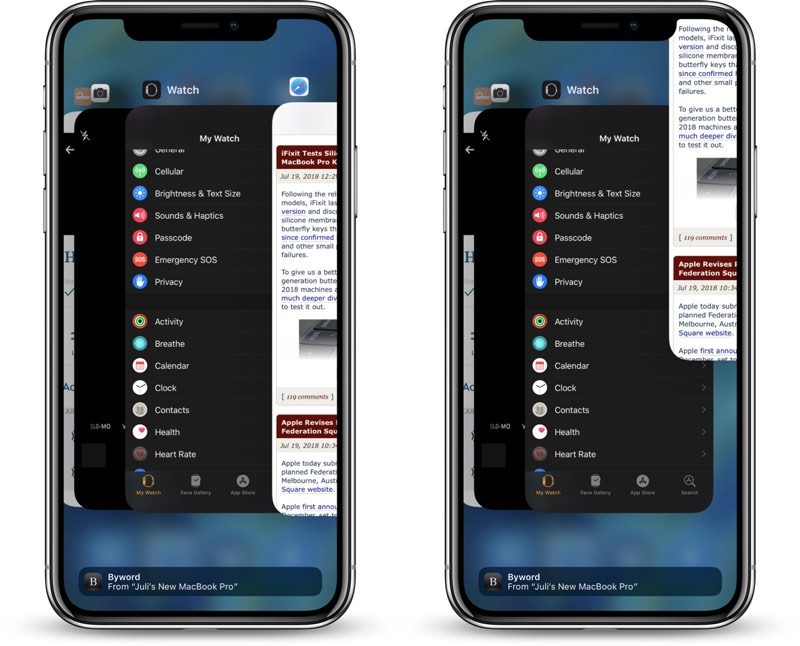
One of these changes involved the App Switcher and the way apps are closed, with Apple introducing a gesture that was much more cumbersome than the simple swipe up to close option that was available on devices with a Home button.

To close an app in iOS 11 on iPhone X, you need to open up the App Switcher, press a finger on an app until the red "-" appears in the corner, and then tap that - to close it.

In iOS 12, the process has been simplified, and it's once again a swipe gesture. Here's how to do it:
  1. At the Home screen of the iPhone X, or while in an app, swipe up and hold from the bottom of the display.
  2. When the App Switcher comes up swipe through the different app cards to find the app that you want to close.
  3. Use a quick swipe upwards to close the app.
Using this gesture exits out of an app and effectively closes it, which is useful if you need to restart an app for some reason. There's generally no need to close your apps to improve performance, though, as Apple has built-in management systems for dealing with all of the apps that you have open on your device.

Most apps that are not active are in a suspended state and are not using up any resources, but some apps can run in the background for a period of time if background refresh is activated.

According to Apple, force quitting an app will not improve your battery life, and it's possible that doing so can actually drain battery because it causes the iPhone to load it all over again.Jihosoft iPhone Backup Extractor Extract and recover all types of data from iPhone backup files, such as camera roll photos, videos, SMS, contacts, reminders, WhatsApp, and etc.
Gihosoft Free iPhone Data Recovery is a professional iPhone Data Recovery software to get back all your lost text message, photo, video, call history, note, contact and more from iPhone/iPad/iPod Touch.